
Effortless privacy, wherever you go
Turn on xVPN once and keep browsing. Your real IP stays private while modern encryption shields traffic on Wi-Fi, mobile data, and wired networks.
Explore xVPN privacy
Protect your connection, change your virtual location, and browse with confidence using the lightweight xVPN app.
Public Wi-Fi, curious trackers, and restricted networks should not decide how you use the internet. xVPN encrypts the route between you and the web.
Turn on xVPN once and keep browsing. Your real IP stays private while modern encryption shields traffic on Wi-Fi, mobile data, and wired networks.
Explore xVPN privacy
Smart routing connects you to a fast nearby server automatically.


Smart server selection, encrypted browsing, Private DNS, and unlimited device protection come together in one lightweight xVPN app. Stay connected across changing Wi-Fi and mobile networks without rebuilding your privacy setup on every device.
Connect with one tap and let Smart Location compare nearby xVPN servers for a responsive route. It considers distance and current network conditions, then recommends a location suited to everyday browsing, streaming, and calls. You can switch regions manually at any time.
One xVPN account protects phones, laptops, tablets, TVs, and browsers without device limits. Stay private across every screen, wherever you connect.
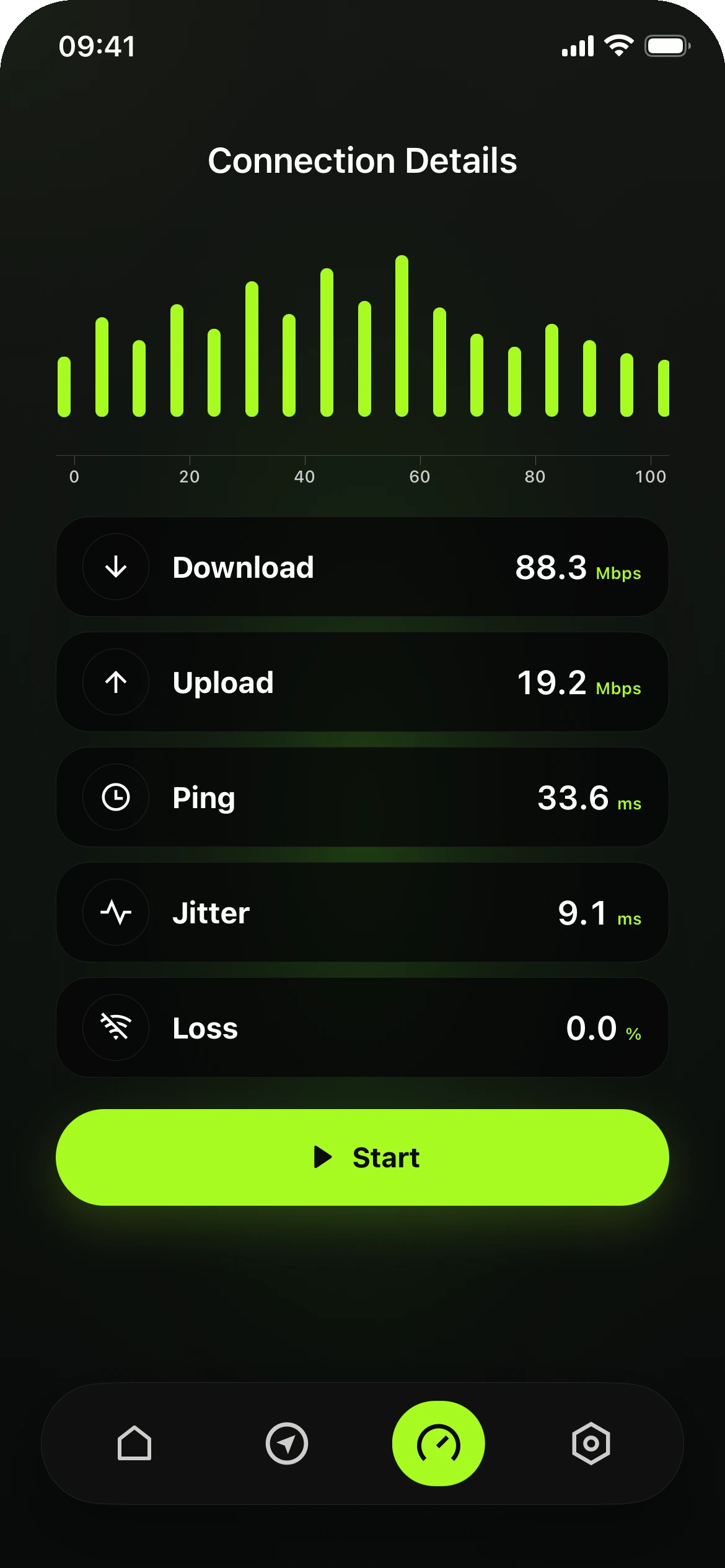
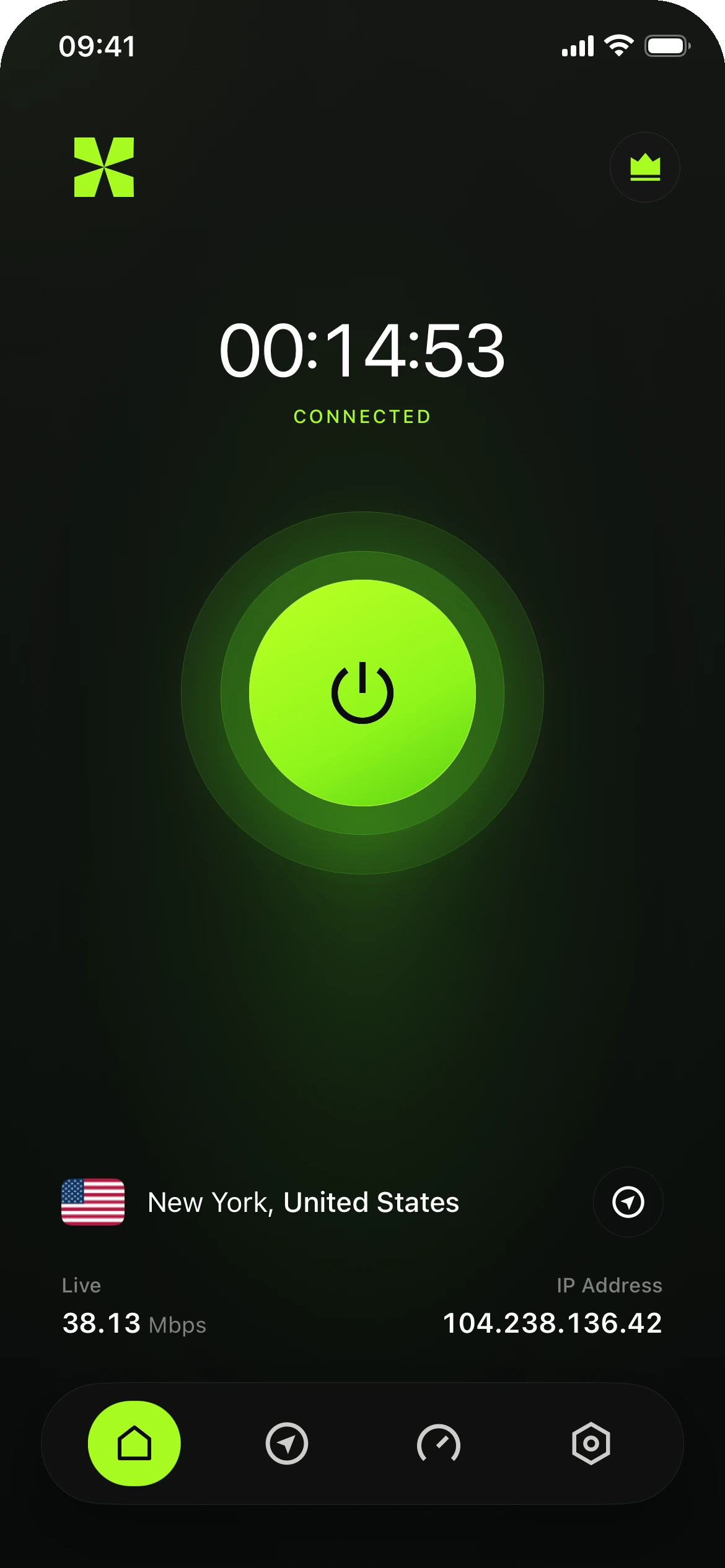
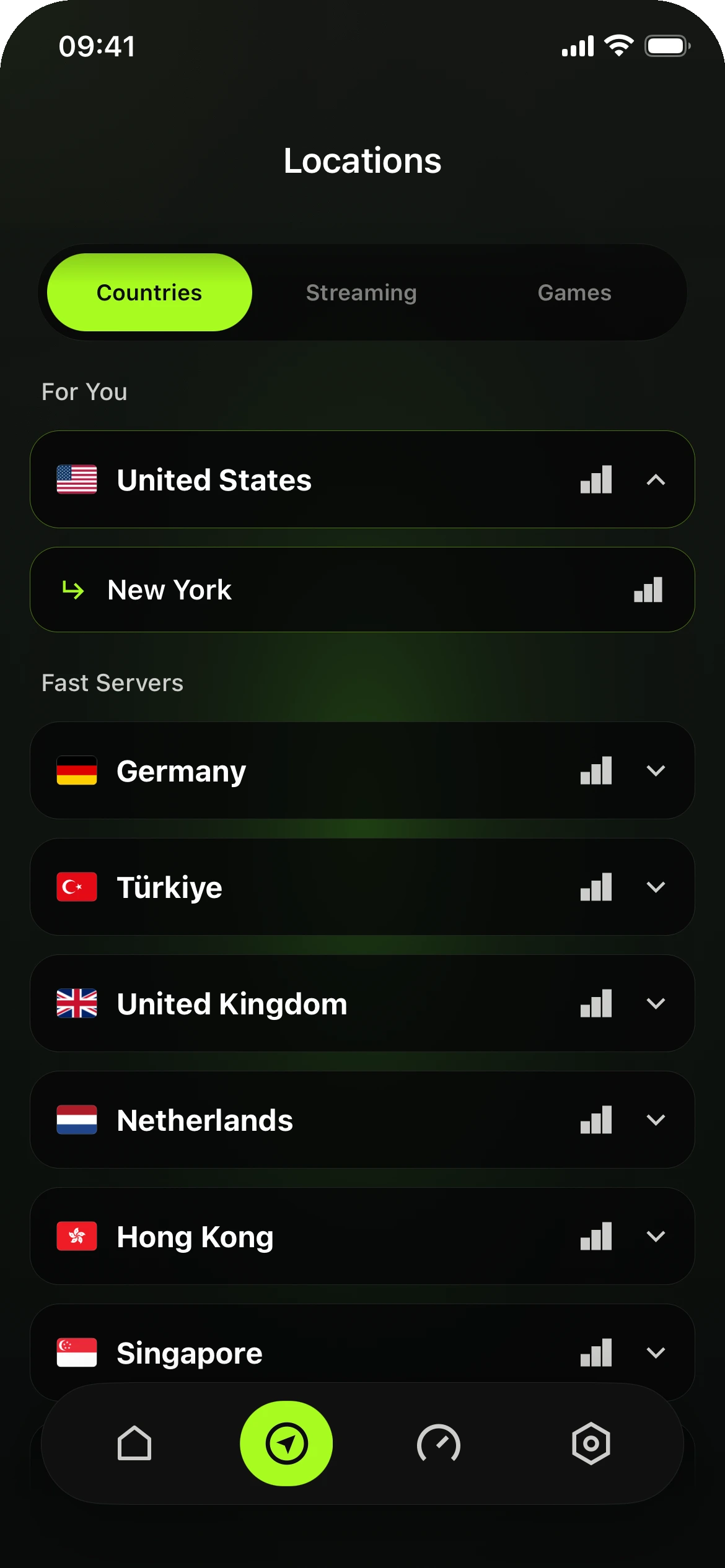
A lightweight app, one clear connection button, live status, and fast server switching. The interface follows the same product language across every screen.
DownloadAuto-connect and kill switch help keep traffic protected when networks change.
DNS and IPv6 leak safeguards keep the connection consistent in the background.
Reduce what websites, advertisers, and network operators can learn about your browsing. xVPN gives you simple tools to separate your identity from your connection.
IP PRIVACY
Replace your public IP with an xVPN server address and make location-based profiling harder.
Explore IP privacyLIVE STATUS
Clear states tell you when protection is active, reconnecting, or paused.
LOCATIONS
Switch regions in seconds for a more open, consistent internet experience.
AUTO PROTECT
Automatically secure cafés, airports, hotels, and other networks you do not control.
YearlyBilled once a year
Get xVPNChoose a region or let xVPN Smart Location compare nearby servers and select the fastest route for your current network. Switch locations whenever your connection needs change.

“xVPN is the privacy app I do not have to think about. It feels fast, stays clean, and works on every device I use.”
Independent beta tester
Understand what xVPN does, why it matters, and how, where, when, and by whom it can be used. Six direct answers cover the essentials without unnecessary technical detail.
xVPN encrypts traffic between your device and the internet, then replaces your public IP address with the address of the server location you choose.
xVPN helps keep your connection private on networks you do not fully control and makes IP-based tracking and location profiling more difficult.
xVPN creates an encrypted route for your internet traffic. Smart Location can compare nearby servers and recommend a responsive connection, or you can select a country manually.
Use xVPN at home, at work, while traveling, or on public Wi-Fi across supported phones, computers, tablets, TVs, and browsers.
Turn on xVPN whenever you want a more private connection, especially on hotel, airport, café, or other shared Wi-Fi networks.
xVPN is for anyone who wants simple everyday privacy, flexible server locations, and protection across supported devices without a device limit.
Download xVPN and make secure browsing your default. Wherever you go.
Start with xVPN


